PICK A PRODUCT. THEN PERSONALISE.

Start in Printlab Studio

Choose a product first so Printlab uses the correct options. Then add text, artwork or a suitable logo and preview it before ordering.

Customisable organic cotton baseball cap from USASTARFASHION

Personalise a cap

Choose a cap and its options, then open Printlab on the product page to add your design.

Choose a cap

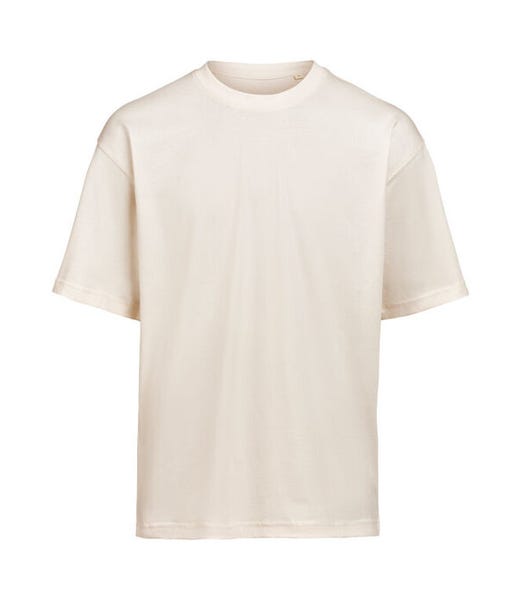
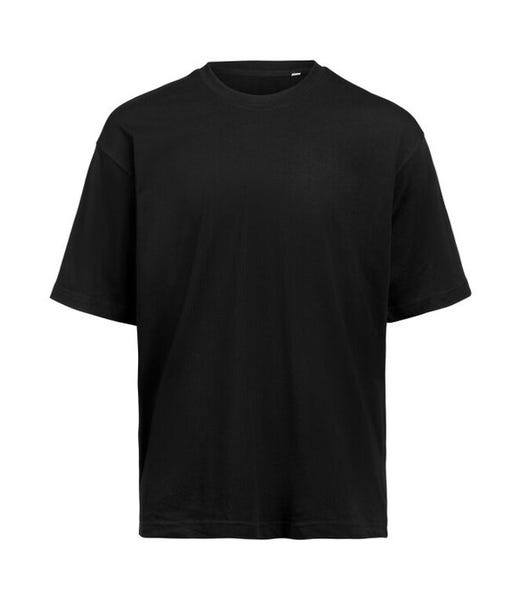
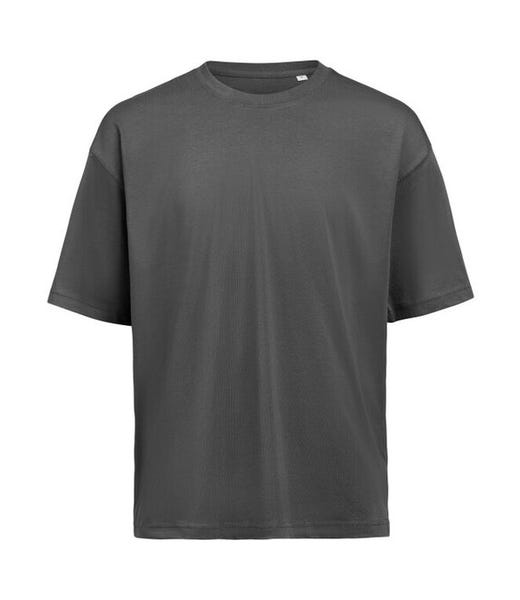
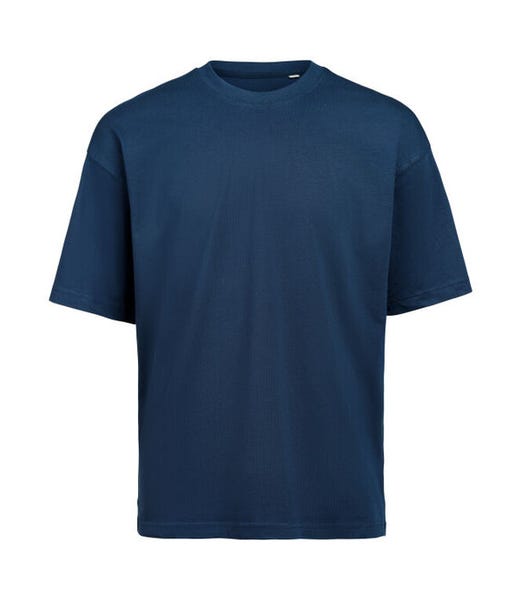
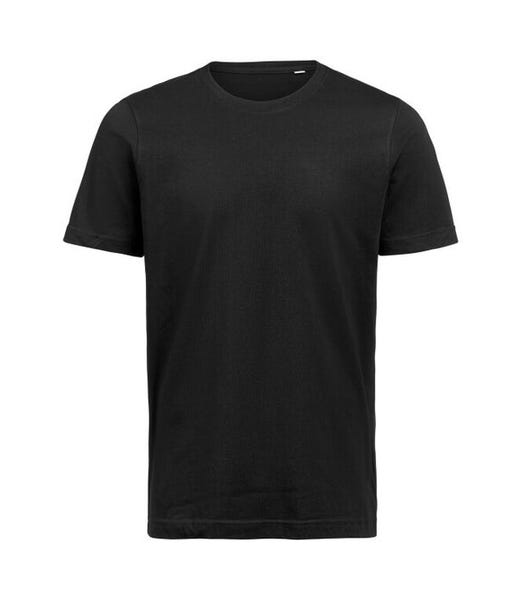
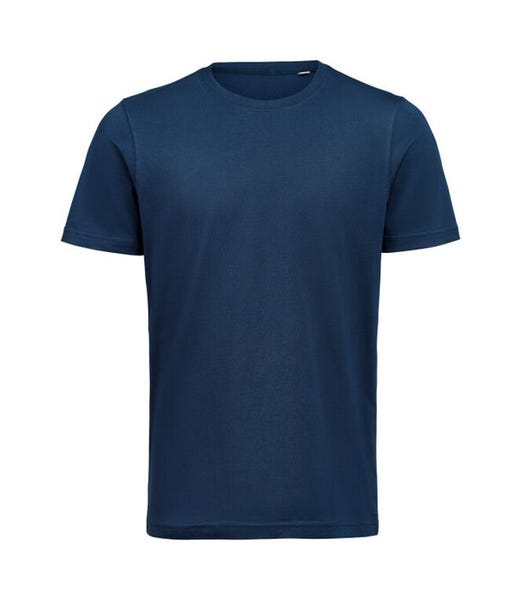
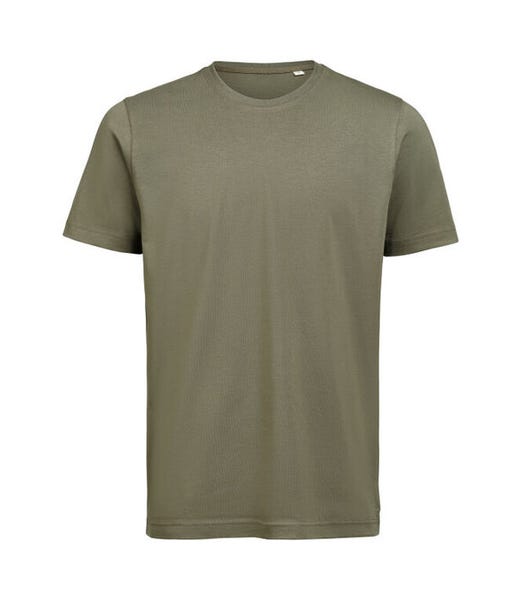
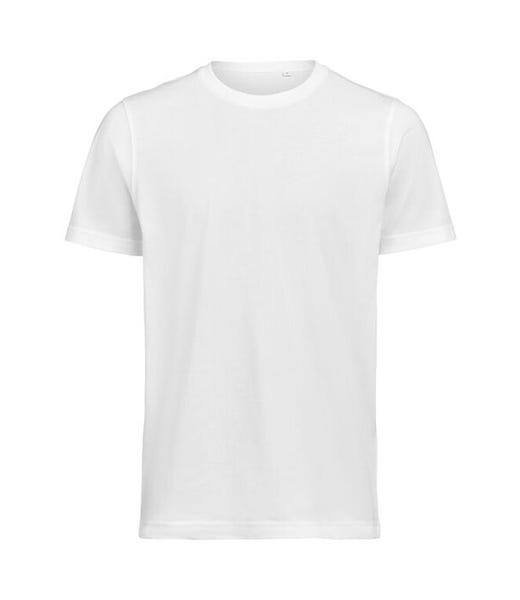
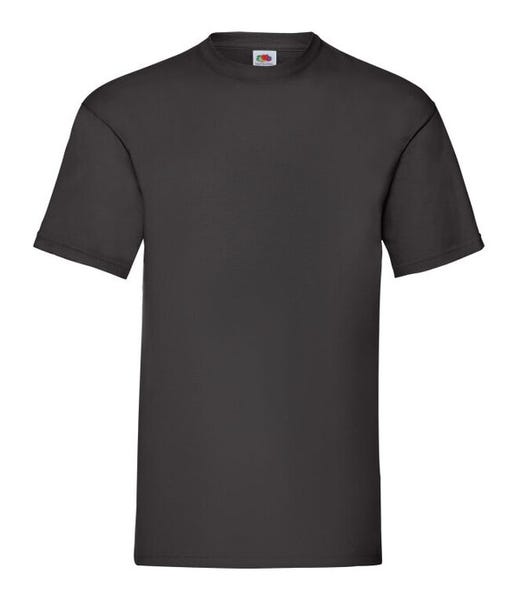
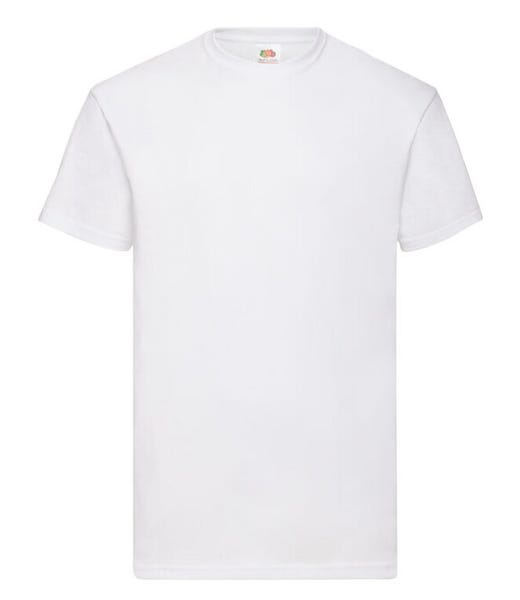
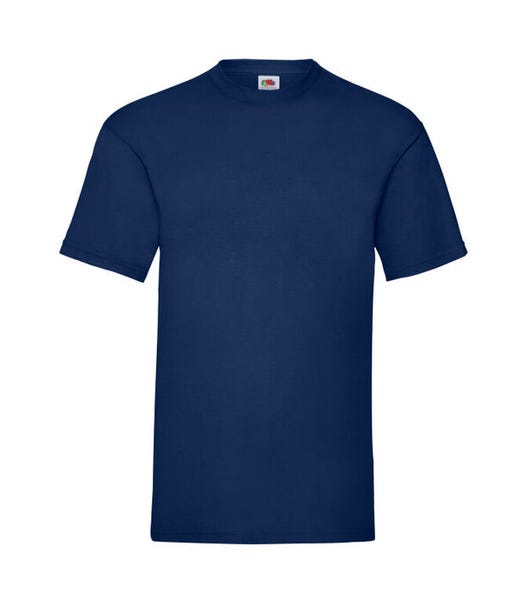
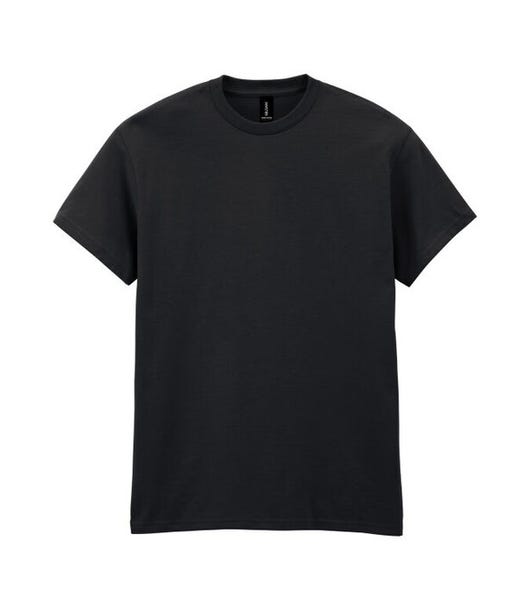
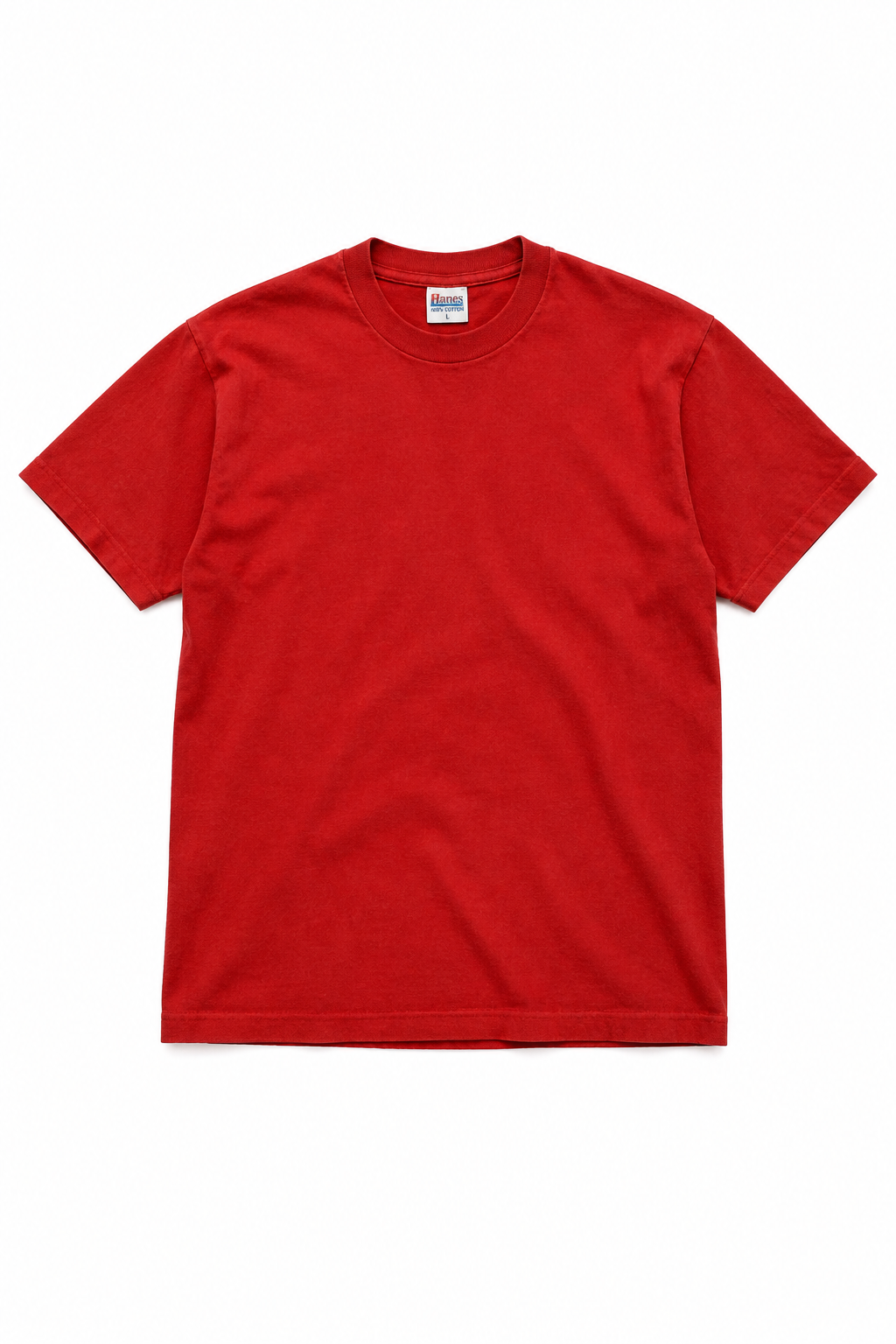
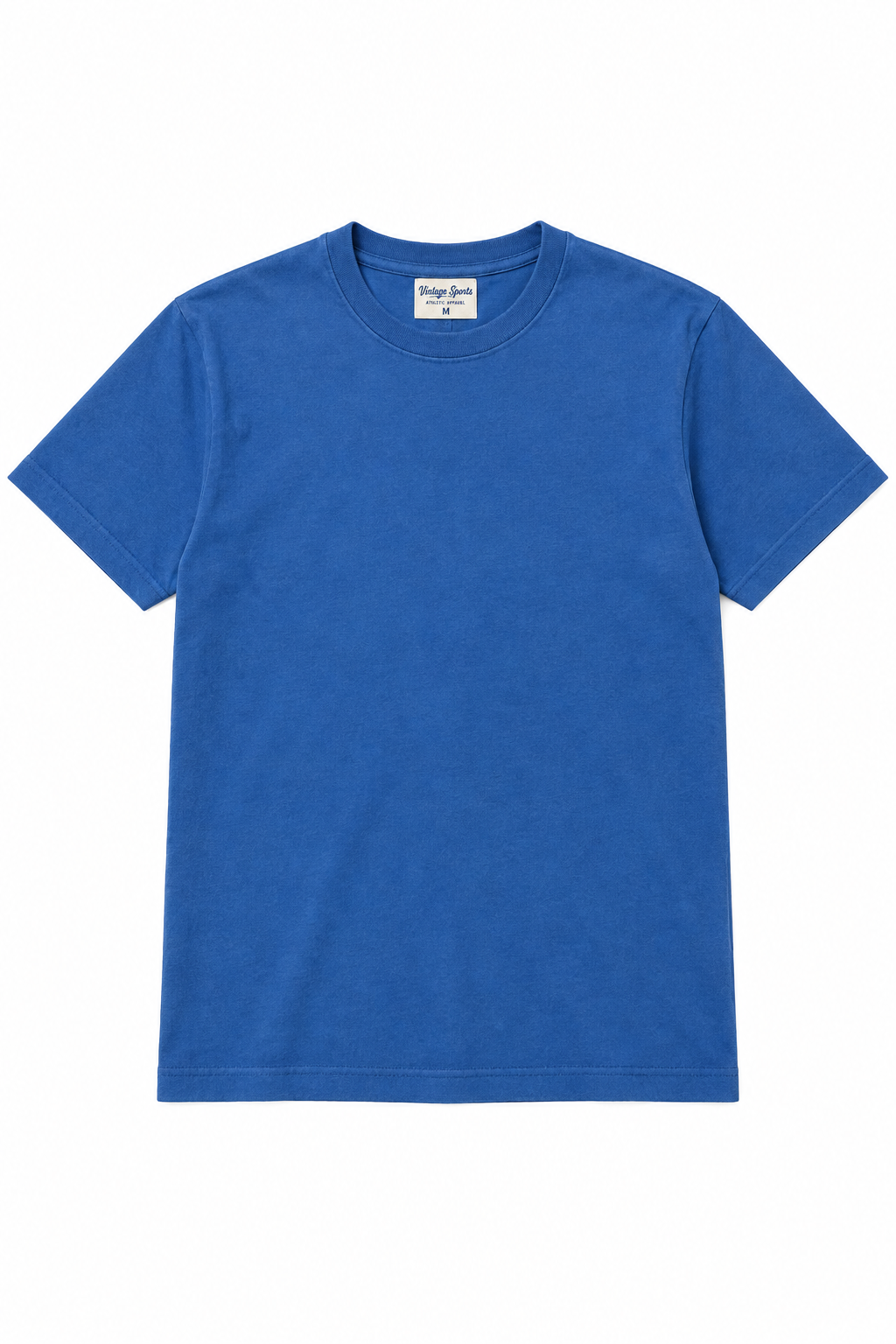
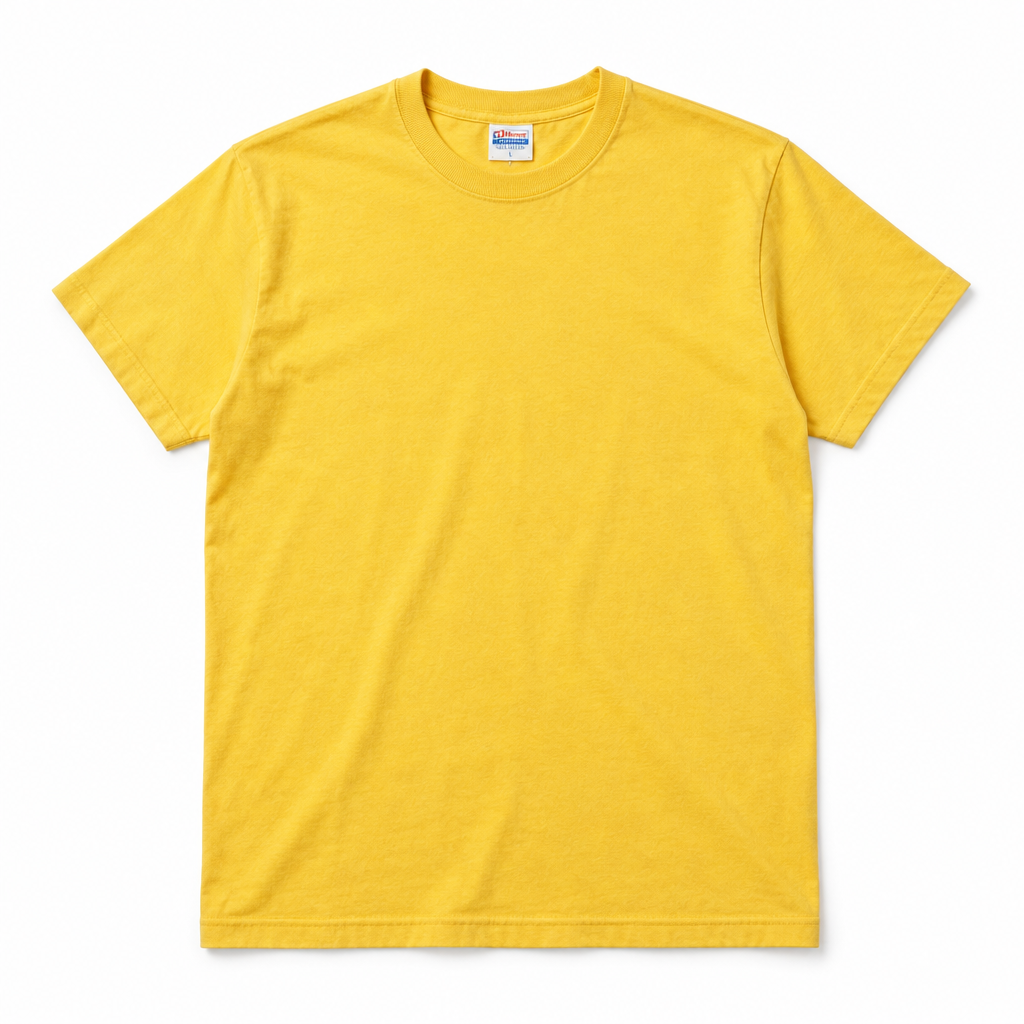
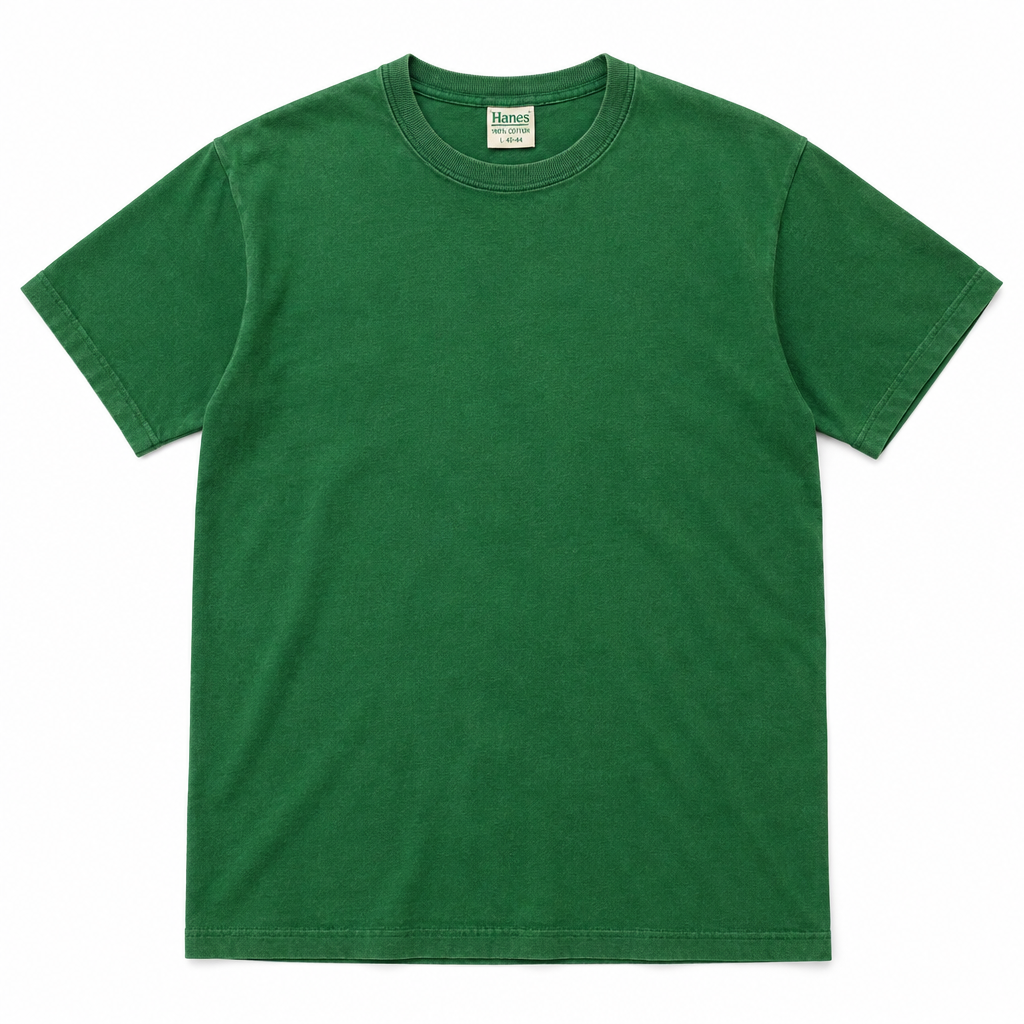
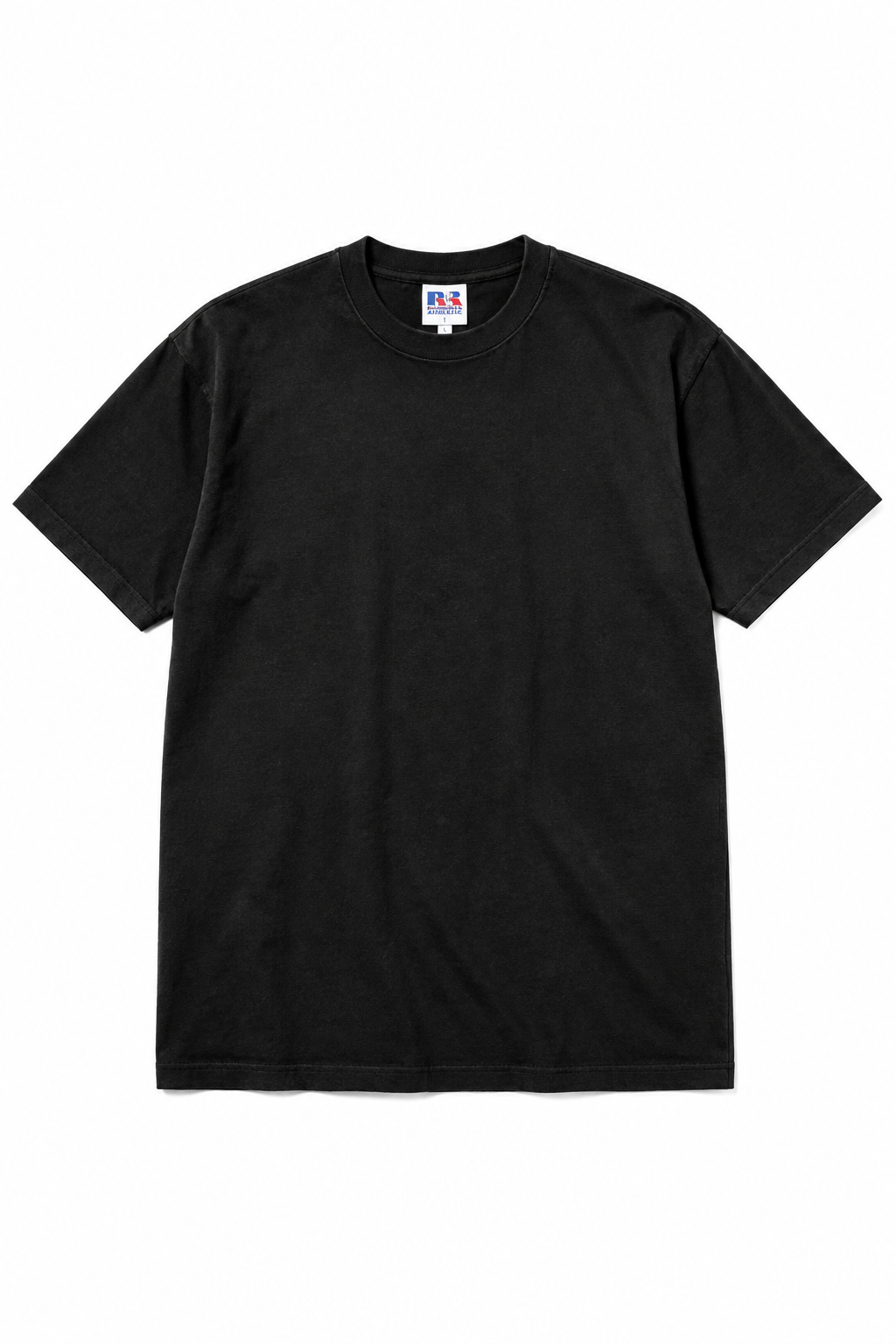
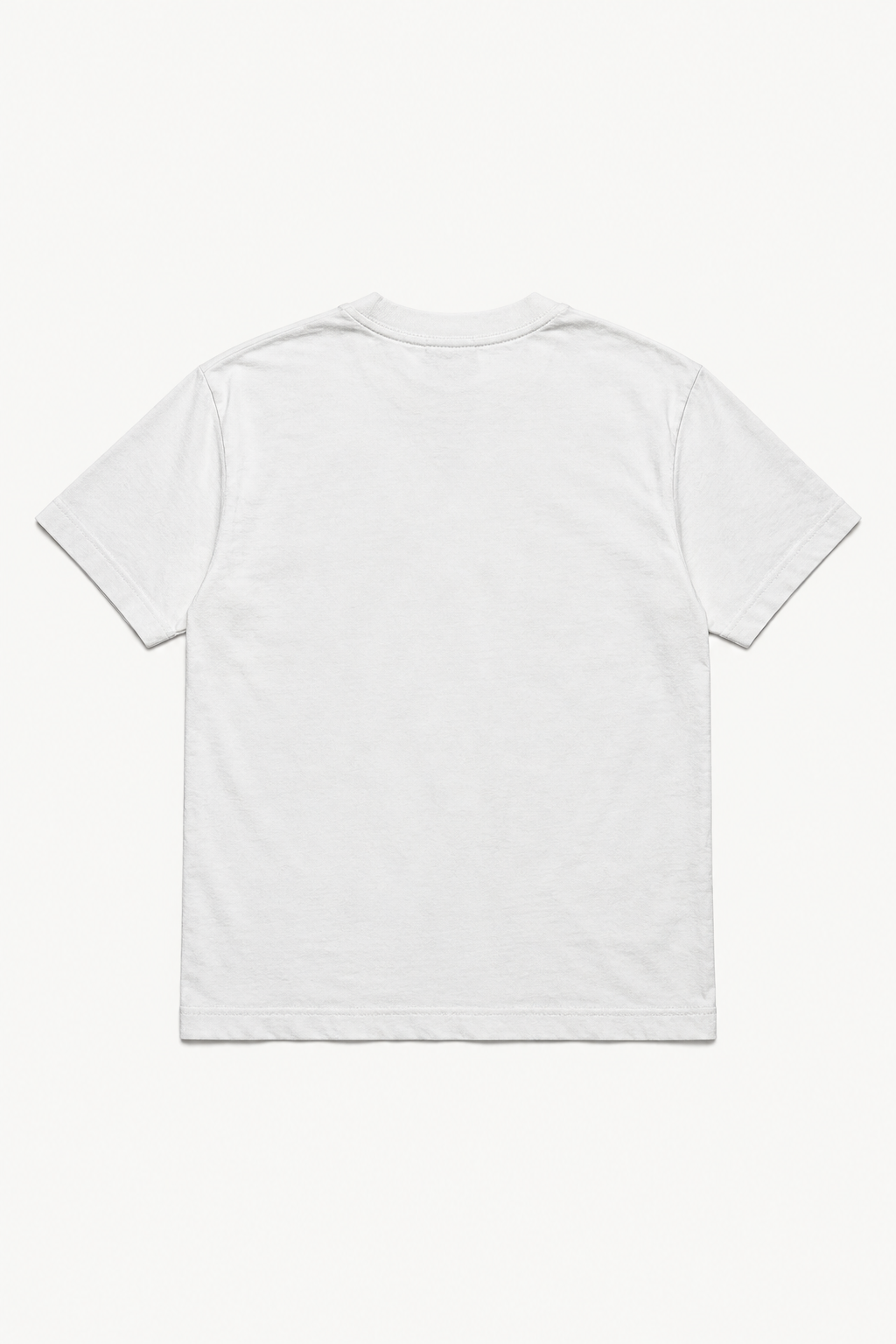
Personalise a T-shirt

Pick a T-shirt and size, then use Printlab to add text, a photo, artwork or a suitable logo.

Choose a T-shirt

Personalise a hoodie

Choose your hoodie, open Printlab, create the design and preview it before adding it to cart.

Choose a hoodie

PERSONALISED CLOTHING • DTF PRINTING • EMBROIDERY • DESIGN IN PRINTLAB • MADE FOR YOU

Digital Designs

Explore downloadable artwork packs for creative print projects. Digital products are delivered electronically; no physical item is posted.

FOUR SIMPLE STEPS

Printlab Studio: how it works

Personalising is easier when you follow the product-first flow.

Shop personalised products

1. Choose your product

Open a personalised product and choose the size, colour and available options.

2. Open Printlab Studio

Use Personalise in Lab Studio on the product page or Quick View to start your design.

3. Create & preview

Add text, a photo, artwork or a suitable logo. Position it and check the preview.

4. Add to cart

Save the personalisation, then add the configured product to your cart.

Build a personalised selection

Choose several products together, then open each personalised clothing item in Printlab to add your text, logo or artwork before ordering.

Color
Color: Black
Personalisation Type
Personalisation Type: Custom DTF Printing
Custom Embroidery or DTF Print
Custom Embroidery or DTF Print: Embroidery
Color
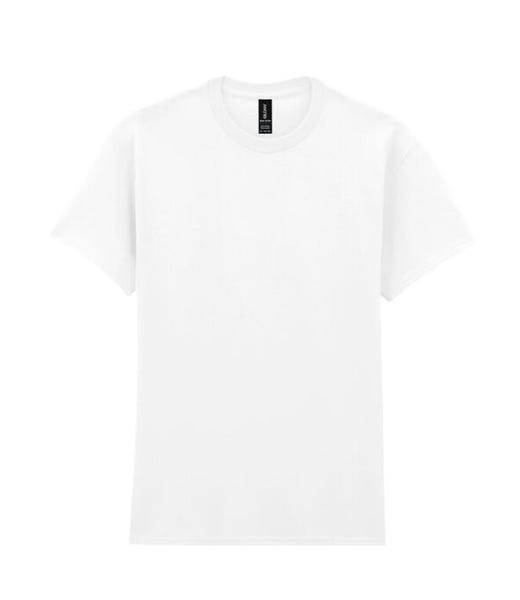
Color: White
Size
Size: S
Color
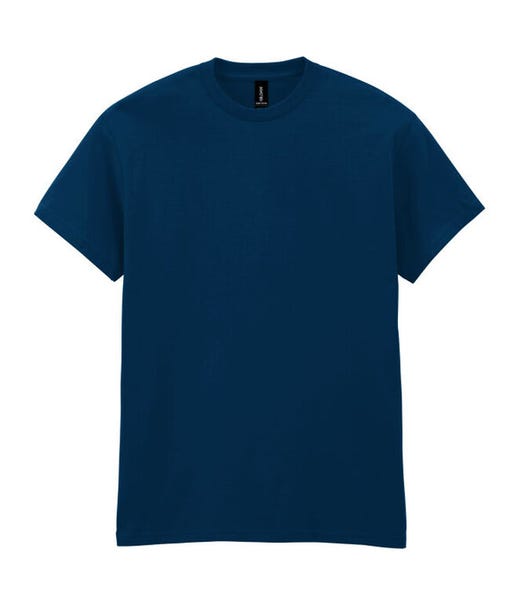
Color: Black
Size
Size: One Size
Personalisation Type
Personalisation Type: Blank
Color
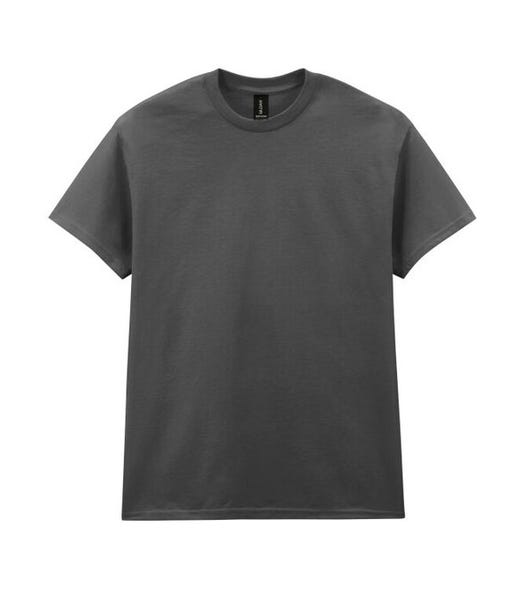
Color: Dark Grey
Size
Size: XS
Personalisation Type
Personalisation Type: Blank

Choose your items

Select up to 3 items. For personalised clothing, choose the product options and use Printlab on the product page before adding the finished item to cart.

Remove
Remove
Remove

DESIGN • PREVIEW • ORDER

See Printlab Studio in action

Choose your item and options, open Printlab Studio, build the design and preview the result. Save the personalisation before adding the configured product to cart.

Start with this cap

Made personal in the UK

USASTARFASHION creates personalised clothing and accessories using DTF printing and embroidery. Choose a product, make it your own in Printlab, and preview your design before ordering.

From one-off gifts to teamwear and branded clothing, each personalised order is prepared with care.

MAKE IT YOURS

Ready to open Printlab Studio ?

Choose a product to personalise

Ready to create? Choose a personalised product, select the size, colour and decoration option, then open Printlab Studio to add your design and preview it before checkout.

My downloads

Your digital purchases are always available here.

USASTARFASHION PRINTLAB

See Printlab in action

Watch a cap design take shape in the studio. This 90-second captioned walkthrough shows logo creation, editing tools, previews and the steps to save or order.

Quick instructions
  1. Open Printlab on your chosen product. Sign in and review the terms when asked.
  2. Choose DTF or Embroidery and check the matching product options.
  3. Add artwork, create a logo or add text. Select a layer to change its size, position, colour or rotation.
  4. Use See the difference to compare your design with the original product.
  5. Save an editable project, download your work, or check your options and add to cart.

AI generation and embroidery digitising require a separate action. Review machine files and test-sew embroidery drafts before production. Product previews show illustrative placement.

Questions? Start here.

Instant answers about Printlab and your order. Choose a question or search below.

How do I personalise a product?

Open Printlab from a product page, sign in and review the service terms when asked. Choose your product options and DTF or Embroidery, then add your design. Check the preview before adding it to your cart.

What artwork can I upload?

Use PNG, JPG or WebP artwork, up to 15 MB per file. A transparent PNG works well for DTF. Upload only artwork you own or have permission to use. Read the artwork service terms.

Can I create an embroidery logo?

Yes. In Embroidery → Artwork, use the Logo Creator for editable text and bold shapes, or prepare a Simple AI Image brief. Complex images are rejected when added. Automatically digitised files are drafts that require production review and a test sew.

Where are the embroidery and DTF libraries?

DTF mode shows Google Drive artwork. Embroidery mode has a separate Embroidery Designs folder with original collection names and design categories. Choose for order adds a design; Download PES saves its original machine file.

Can I save my design and finish later?

Use Save project to download an editable copy to your device. Use Open in Printlab to load that project again. Keep a backup before closing the studio.

How do I check delivery or track my order?

Check the shipping information shown for your order and use Track my order. For a personalised production or delivery question, email support@usastarfashion.com with your order number. Shipping policy.

Can I return a personalised item or report a problem?

Personalised products have different return conditions. If anything is wrong with your order, contact support with your order number and a description of the problem. Read the refund policy and store terms for the applicable conditions.

How is my artwork and personal information used?

Read the store privacy policy and Printlab privacy notice for details about the service and your information. Contact support if you have a privacy question.

Need a personal answer? Contact us. These instant answers do not access your individual order.